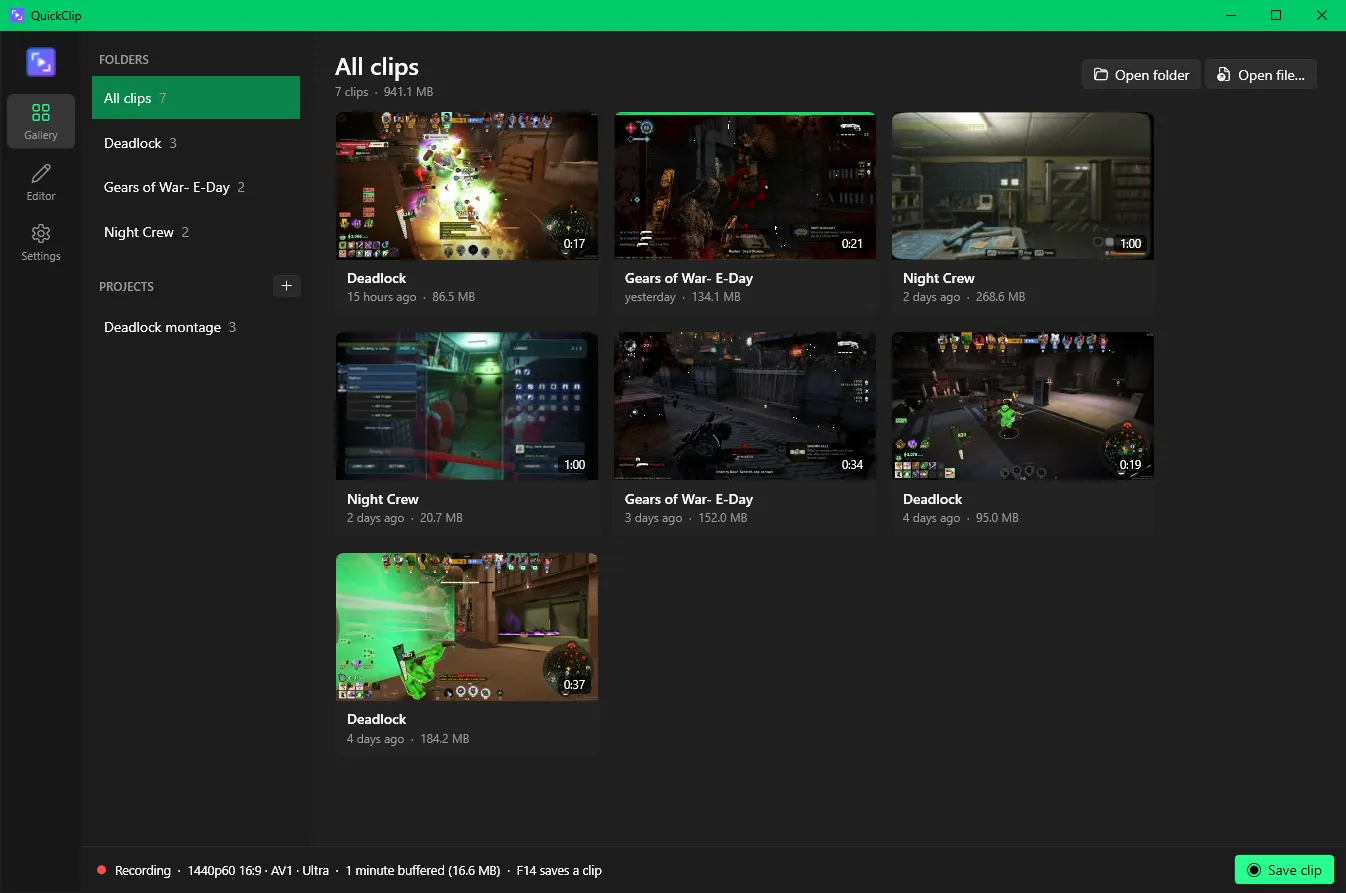
QuickClip 0.7
View the release on GitHubQuickClip 0.7 adds smoother 120 fps clips, game window capture, several microphones, and a tidier editor that copies your clips without re-encoding whenever it can.
New
- Smooth motion when sharing: sharing a clip that's over 60 fps (like a 120 fps recording) blends the frames in between into motion blur, so the 60 fps copy looks smoother than one that just drops every other frame. It's on by default; turn it off under Settings → Sharing.
- Smooth 60 fps in the editor: for clips of about 90 fps and up, the Frame rate section has a Smooth 60 fps choice that does the same.
- Share size limit (Settings → Sharing): shared copies are made to fit under the size you set, 30 MB to start. 10 MB fits Discord without Nitro.
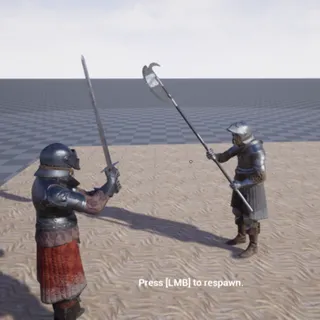
- Prefer game window capture (Settings → Instant replay): while a game is running, QuickClip records just its window, still when you tab out, until it closes. Notifications and overlay windows on top of the game (Discord, Xbox Game Bar, AMD, NVIDIA) aren't in the clip. Overlays a game draws into its own picture, like Steam's, can't be left out. The crop is off while this is on.
- Several microphones (Settings → Audio): record more than one with Add another microphone, mixed onto the one Mic track or each on a track of its own named after the microphone. Thanks to Jared Merritt.
- What's new: after QuickClip updates, it shows what's changed the next time you open its window (never over a game). Settings → Updates → What's new shows it again.
Changed
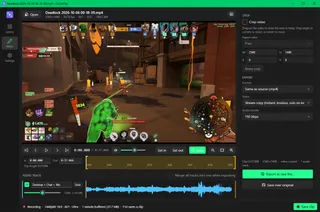
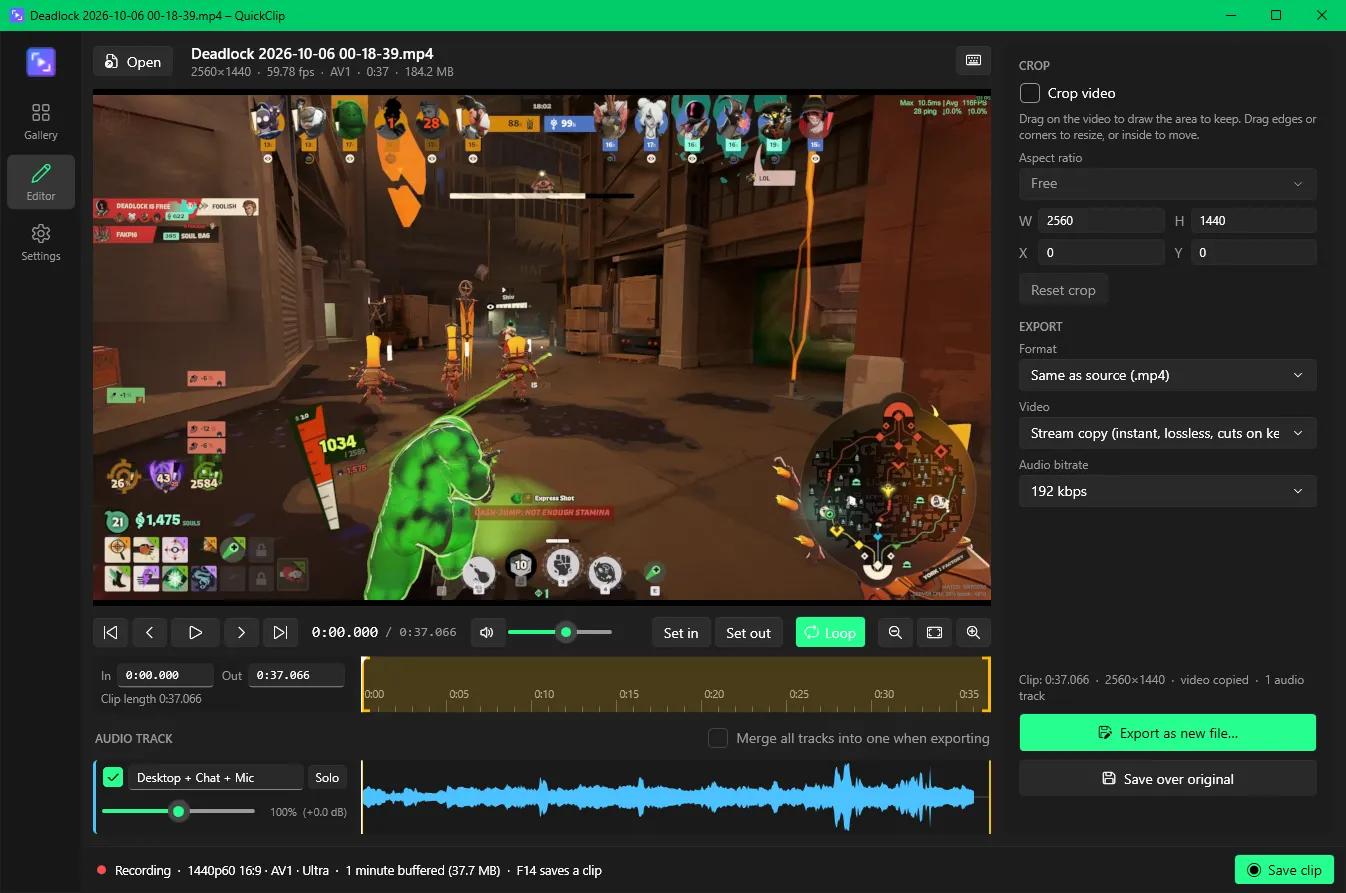
- The editor's options are in four sections: Crop, Frame rate, Encoding and Output. Each is closed until you open it and shows what it's set to in its heading.
- No more choosing between stream copy and re-encode. Everything starts at Same as original, and the video is copied as it is: quick, with nothing lost. Changing anything that needs re-encoding (a crop, a new size, frame rate, encoder or quality, or trimming the start between keyframes) switches to that by itself, and Encoding says why.
- Desktop audio now has everything except the chat and music apps themselves: an app one of them started, like a browser opened from a link in Discord, is on Desktop rather than on the Chat or Music track. With both a chat and a music app running, an app that has gone quiet is still recorded, so the start of its next sound isn't cut off.
Fixed
- Recording at 120 fps (or more) now reaches the full frame rate; it could be held to about 75–80 fps.
- Clips exported from the editor with a trimmed start no longer play their audio late (by up to a second) in Windows Media Player, Discord and other players. Clips already exported that way keep the delay; export them again from the original to fix it.
Updating
QuickClip offers this update itself: click Update to 0.7 at the bottom of the window, or go to Settings → Updates. Otherwise, download QuickClip-0.7.0-setup.exe below and run it. It installs over the previous version and keeps your settings and clips.
The portable QuickClip-0.7.0-win-x64.zip runs from any folder.
Requires Windows 10 version 2004 or later (64-bit) and a GPU with a hardware video encoder (NVIDIA, AMD or Intel). Splitting voice chat and music from desktop audio needs Windows 11 (or Windows 10 build 20348 and later).