Windows app · C# / C++
QuickClip
A lightweight instant-replay clipper — it keeps the last few minutes of your screen in memory and saves a clip on a hotkey, with a built-in editor.
New QuickClip 0.7.1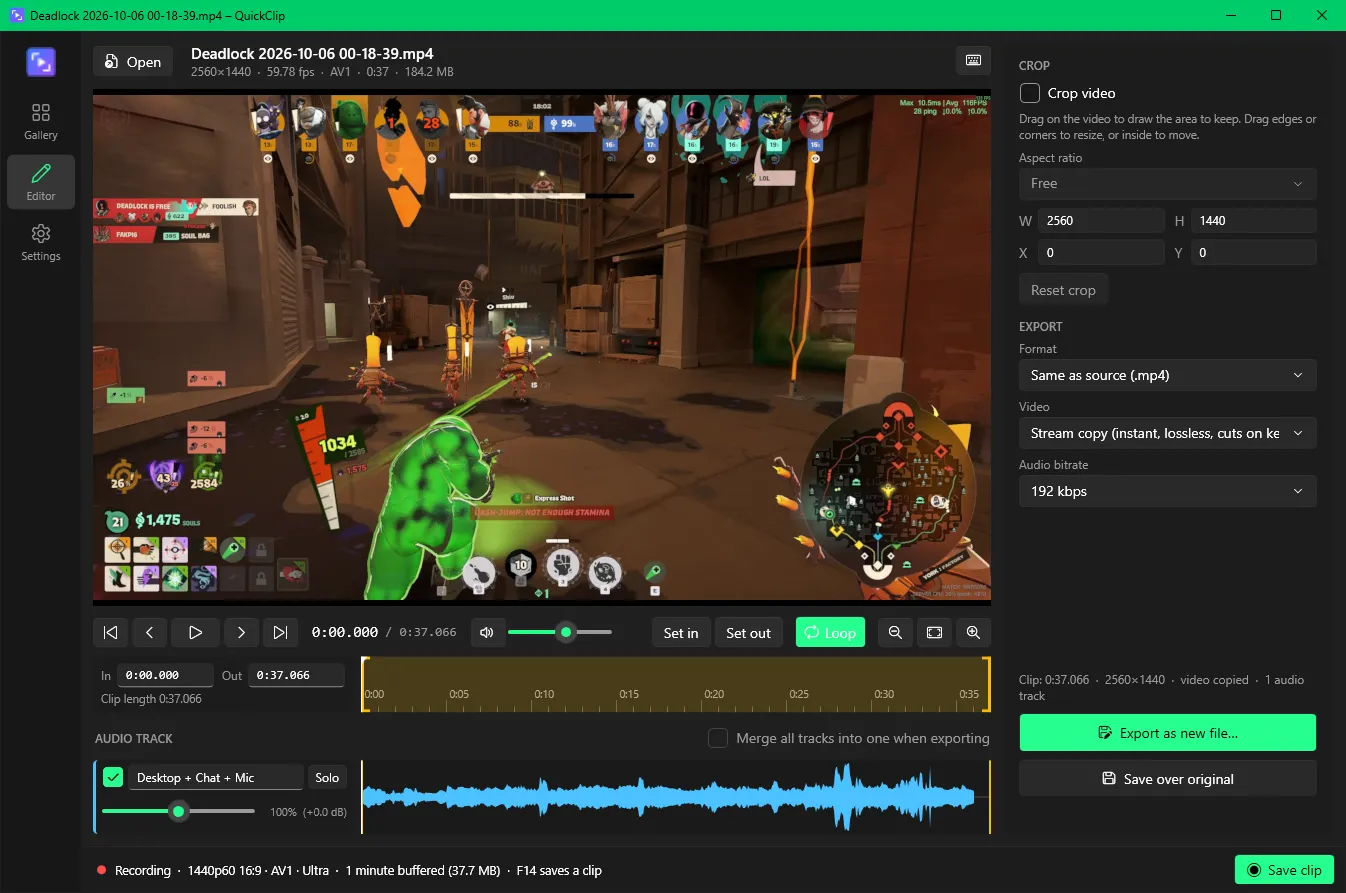
QuickClip keeps a rolling buffer of your screen in memory and saves it as a clip when you press a hotkey, so you don’t need to record everything all the time.
Capture runs through a native C++ engine, so recording costs very little: frames come from DXGI Desktop Duplication or Windows Graphics Capture and are encoded on the GPU. Audio is captured per application, so game, voice chat, music and microphone land on separate tracks you can balance later.
Clips go into per-game folders, and the built-in editor (powered by libmpv) handles trimming, cropping, per-track volume and stitching clips into montages.
Latest update
Release notes
QuickClip 0.7.1
View the release on GitHubQuickClip 0.7.1 fixes recording on older NVIDIA cards, a hang that could stop recording from starting, and missing game sound on the Desktop track.
Fixed
- Desktop audio missing game sound while a voice chat app (like Discord) and a music app (like Spotify) were both running. Voice chat and music are no longer split onto tracks of their own for now, so the Desktop track has everything you hear again. Your microphones still get their own track (or one each). Separate chat and music tracks will come back once they're reliable.
- Recording never starting after some graphics driver updates: a driver could leave QuickClip's check of the graphics card's encoders hanging. Each check now gives up after 10 seconds.
- "No graphics card video encoder was found" on NVIDIA GTX 900 and 10 series cards (like the GTX 970 or GTX 1060): they now record through the graphics card's encoder via Windows.
- In the editor, changing an option and then putting it back to the original (such as the format) could leave the clip being re-encoded. It's copied as it is again.
New
- Revert to original in the editor: when any option is changed, one click puts them all back, so the export is just your trim, copied as it is.
Changed
- With Prefer game window capture on, the aspect ratio still applies when the desktop is recorded (no game running). It's labelled Desktop aspect ratio then; a game's window is recorded as it is.
Updating
QuickClip offers this update itself: click Update to 0.7.1 at the bottom of the window, or go to Settings → Updates. Otherwise, download QuickClip-0.7.1-setup.exe below and run it. It installs over the previous version and keeps your settings and clips.
The portable QuickClip-0.7.1-win-x64.zip runs from any folder.
Requires Windows 10 version 2004 or later (64-bit) and a graphics card with a video encoder (NVIDIA, AMD or Intel).
Earlier updates
v0.7.0QuickClip 0.7
QuickClip 0.7 adds smoother 120 fps clips, game window capture, several microphones, and a tidier editor that copies your clips without re-encoding whenever it can.
New
- Smooth motion when sharing: sharing a clip that's over 60 fps (like a 120 fps recording) blends the frames in between into motion blur, so the 60 fps copy looks smoother than one that just drops every other frame. It's on by default; turn it off under Settings → Sharing.
- Smooth 60 fps in the editor: for clips of about 90 fps and up, the Frame rate section has a Smooth 60 fps choice that does the same.
- Share size limit (Settings → Sharing): shared copies are made to fit under the size you set, 30 MB to start. 10 MB fits Discord without Nitro.
- Prefer game window capture (Settings → Instant replay): while a game is running, QuickClip records just its window, still when you tab out, until it closes. Notifications and overlay windows on top of the game (Discord, Xbox Game Bar, AMD, NVIDIA) aren't in the clip. Overlays a game draws into its own picture, like Steam's, can't be left out. The crop is off while this is on.
- Several microphones (Settings → Audio): record more than one with Add another microphone, mixed onto the one Mic track or each on a track of its own named after the microphone. Thanks to Jared Merritt.
- What's new: after QuickClip updates, it shows what's changed the next time you open its window (never over a game). Settings → Updates → What's new shows it again.
Changed
- The editor's options are in four sections: Crop, Frame rate, Encoding and Output. Each is closed until you open it and shows what it's set to in its heading.
- No more choosing between stream copy and re-encode. Everything starts at Same as original, and the video is copied as it is: quick, with nothing lost. Changing anything that needs re-encoding (a crop, a new size, frame rate, encoder or quality, or trimming the start between keyframes) switches to that by itself, and Encoding says why.
- Desktop audio now has everything except the chat and music apps themselves: an app one of them started, like a browser opened from a link in Discord, is on Desktop rather than on the Chat or Music track. With both a chat and a music app running, an app that has gone quiet is still recorded, so the start of its next sound isn't cut off.
Fixed
- Recording at 120 fps (or more) now reaches the full frame rate; it could be held to about 75–80 fps.
- Clips exported from the editor with a trimmed start no longer play their audio late (by up to a second) in Windows Media Player, Discord and other players. Clips already exported that way keep the delay; export them again from the original to fix it.
Updating
QuickClip offers this update itself: click Update to 0.7 at the bottom of the window, or go to Settings → Updates. Otherwise, download QuickClip-0.7.0-setup.exe below and run it. It installs over the previous version and keeps your settings and clips.
The portable QuickClip-0.7.0-win-x64.zip runs from any folder.
Requires Windows 10 version 2004 or later (64-bit) and a GPU with a hardware video encoder (NVIDIA, AMD or Intel). Splitting voice chat and music from desktop audio needs Windows 11 (or Windows 10 build 20348 and later).
v0.6.0QuickClip 0.6
QuickClip 0.6 adds instant sharing, undo for edits, and a nightly update channel.
New
- Instant share: click the share button on a clip (or right-click → Share, or press S in the player). QuickClip makes a copy that's under 30 MB, at most 60 fps, with all the audio mixed into one track, and puts it on the clipboard: paste it into Discord or anywhere with Ctrl+V. The bar at the bottom shows the progress. Your original clip isn't touched; the copies go in
Videos\QuickClip Sharedand are cleared out after two days. - Undo after Save over original in the editor (or Ctrl+Z) puts the clip back as it was, from the Recycle Bin.
- Drag clips onto a project in the list on the left to add them, or onto the + to start a new project with them.
- A clip's right-click menu now has Share, Add to project and Copy to folder…. With clips ticked, they act on all of them.
- Update channel under Settings → Updates: Stable gets tested releases like this one; Nightly also gets development builds with new features as they're made.
Changed
- Merge all audio tracks into one has moved to the editor's export settings. It now asks before merging, starts off every time, and warns you before saving over a clip with it on. (It used to be remembered, so once ticked it quietly merged every later edit into a single track.)
Updating
QuickClip offers this update itself: click Update to 0.6 at the bottom of the window, or go to Settings → Updates. Otherwise, download QuickClip-0.6.0-setup.exe below and run it. It installs over the previous version and keeps your settings and clips.
The portable QuickClip-0.6.0-win-x64.zip runs from any folder.
Requires Windows 10 version 2004 or later (64-bit) and a GPU with a hardware video encoder (NVIDIA, AMD or Intel). Splitting voice chat and music from desktop audio needs Windows 11 (or Windows 10 build 20348 and later).
v0.5.0QuickClip 0.5
QuickClip 0.5 lets you add sounds and music to your clips.
New
- Add sound in the editor puts a song or sound effect on its own audio track. Click Add sound next to the audio tracks, or drop audio files onto the editor. Drop them onto the timeline to start them right there; otherwise they start at the playhead.
- Move sounds around: each sound sits in a block on its track. Drag it left or right; it snaps to the start and end of the clip, the in and out points and the playhead. Right-click it to start it at the playhead or remove it.
- Sounds work like the clip's own tracks: set their volume, solo them, rename them, and export them as separate tracks or merged into one. Save over original keeps them in the clip.
Fixed
- The project preview no longer logs an error for clips without music.
Updating
QuickClip offers this update itself: click Update to 0.5 at the bottom of the window, or go to Settings → Updates. Otherwise, download QuickClip-0.5.0-setup.exe below and run it. It installs over the previous version and keeps your settings and clips.
The portable QuickClip-0.5.0-win-x64.zip runs from any folder.
Requires Windows 10 version 2004 or later (64-bit) and a GPU with a hardware video encoder (NVIDIA, AMD or Intel). Splitting voice chat and music from desktop audio needs Windows 11 (or Windows 10 build 20348 and later).
v0.4.2QuickClip 0.4.2
QuickClip 0.4.2 gives saving a clip its own sound.
Changed
- Saving a clip now plays a camera shutter instead of the Windows "Asterisk" sound, which was easy to mistake for an error.
- Settings → General has a Play button next to "Play a sound when a clip is saved", so you can hear it. It plays at QuickClip's level in the Windows volume mixer.
Updating
QuickClip offers this update itself: click Update to 0.4.2 at the bottom of the window, or go to Settings → Updates. Otherwise, download QuickClip-0.4.2-setup.exe below and run it. It installs over the previous version and keeps your settings and clips.
The portable QuickClip-0.4.2-win-x64.zip runs from any folder.
Requires Windows 10 version 2004 or later (64-bit) and a GPU with a hardware video encoder (NVIDIA, AMD or Intel). Splitting voice chat and music from desktop audio needs Windows 11 (or Windows 10 build 20348 and later).
v0.4.1QuickClip 0.4.1
QuickClip 0.4.1 fixes clips that could be saved as a black screen.
Fixed
- Black clips: after a resolution change, a game switching display mode (such as going borderless) or a sleep, screen capture could go stale and keep recording a black picture. QuickClip now notices and starts capture again by itself, keeping your replay buffer:
- when the display settings change or the PC wakes up;
- when the picture has been a single flat colour for a few seconds;
- when frames stop arriving.
- A strip of pixels that weren't part of the screen could appear on the right of recordings at some aspect ratio and resolution combinations (with AMD's AV1 encoder).
- A second QuickClip window could open alongside the first.
- Updates now always replace every file.
Updating
QuickClip offers this update itself: click Update to 0.4.1 at the bottom of the window, or go to Settings → Updates. Otherwise, download QuickClip-0.4.1-setup.exe below and run it. It installs over the previous version and keeps your settings and clips.
The portable QuickClip-0.4.1-win-x64.zip runs from any folder.
Requires Windows 10 version 2004 or later (64-bit) and a GPU with a hardware video encoder (NVIDIA, AMD or Intel). Splitting voice chat and music from desktop audio needs Windows 11 (or Windows 10 build 20348 and later).
v0.4.0QuickClip 0.4
QuickClip 0.4: everything from the 0.3 betas, plus a fix for the last one.
Fixed
- 0.3.4 beta opened an extra black window on start that couldn't be closed. That was the project preview, which now shows inside the projects view where it belongs.
New since 0.3 beta
- Montage projects: tick clips in the gallery, then Add to project.
- Drag the clips into order.
- Add a song and preview everything back to back.
- Export to editor joins it all into one video, with your game, chat, mic and the song on separate tracks, ready to mix.
- Copy to folder… for ticked clips.
- Clip player: click a clip to watch it in QuickClip.
- Full screen.
- Previous and next clip.
- Edit, show and delete buttons.
- Keyboard shortcuts.
- Music track: Spotify, TIDAL, Apple Music, Deezer, Amazon Music and other music apps are recorded on their own track, like voice chat.
- Aspect ratio: record just the 16:9 (21:9, 16:10, 4:3) center of your monitor, like the middle of an ultrawide.
- Volume: the editor and the player have a volume slider that sets QuickClip's level in the Windows volume mixer, where QuickClip now shows up by name.
Updating
QuickClip offers this update itself: click Update to 0.4 at the bottom of the window, or go to Settings → Updates. Otherwise, download QuickClip-0.4.0-setup.exe below and run it. It installs over the previous version and keeps your settings and clips.
The portable QuickClip-0.4.0-win-x64.zip runs from any folder.
Requires Windows 10 version 2004 or later (64-bit) and a GPU with a hardware video encoder (NVIDIA, AMD or Intel). Splitting voice chat and music from desktop audio needs Windows 11 (or Windows 10 build 20348 and later).
02 Gallery